
Content
Group Administration
When a user has been designated as a Group Leader, they gain access to Spoti LMS Group Administration capabilities. This gives the Group Leader the ability to run reports and communicate with the users in their group(s).
Accessing Group Administration
Group Leaders access Group Administration capabilities when they log into their account. Upon logging in, Group Leaders will see a Spoti LMS menu with the following sub-menus availableS:
- Assignments
- Submitted Essays
- Group Administration
Assignments
When any user who is a member of a Group Leader’s group(s) submits an assignment, it is listed under the Assignments menu for review and approval (if necessary).
Submitted Essays
Just like assignments, when any user who is a member of the Group Leader’s group(s) completes an essay question in a quiz, it is listed under the Submitted Essays menu for review and approval (if necessary).
Group Administration
The Group Administration menu is where a Group Leader has the ability to:
- View group users
- Email group users
- Export group data
View Group Users
By clicking on List Users from the Group Administration menu, Group Leaders can view details for anyone that they manage. This page includes the following fields:
- Username
- Name
- Actions (Report)
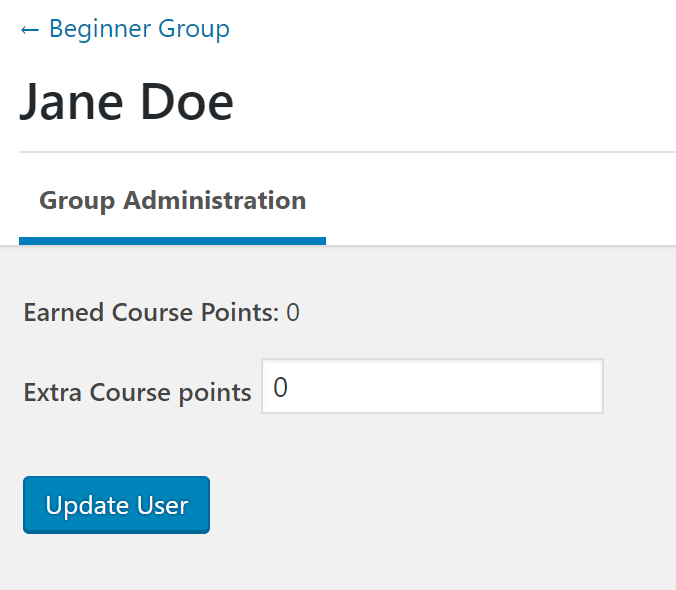
The Report link takes Group Leaders to another page where they can view the total group points of the selected user and optionally award extra course points.
Email Group Users
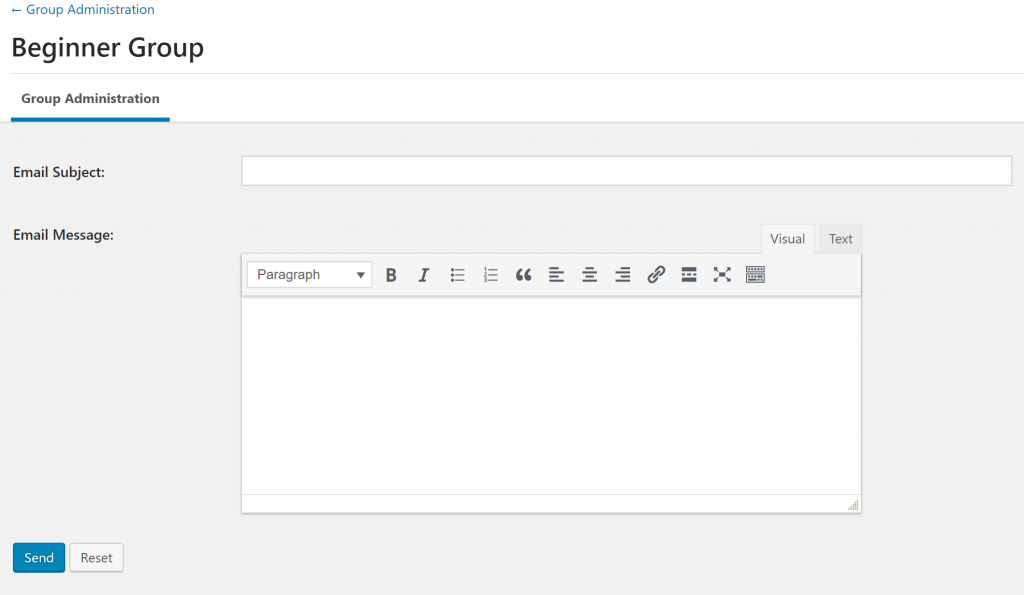
Group Leaders have the ability to email everyone in a group that they manage. To do this:
- Navigate to SPOTI LMS > GROUP ADMINISTRATION
- Click on List Users
- Click the Email Group button above the table of users
- Enter an Email Subject
- Compose an Email Message
- Click Send
Export Group Data
There are two reports that can be exported to .csv format by navigating to SPOTI LMS > GROUP ADMINISTRATION
- Course Data (by clicking the Export Progress link) displays all user’s course progress, what lesson they are currently on, and if the course has been marked complete
- Quiz Data (by clicking the Export Results link) displays all user’s quiz scores, when the quiz was taken, and if the quiz was successfully passed